Start here
By the end of this tutorial, an imported index.html file will be visible and
clickable in Play In Editor. The page will live in a normal UMG Widget
Blueprint, fill a Canvas Panel, and be connected to a Magic UI Component on an
Actor.
This is the complete beginner path. Follow the four pages in order even if you already know UMG—the important MagicUI connection is split between the Actor component and the UMG widget.
What you need
- Unreal Engine 5.8, matching the current plugin package.
- A Win64 project and a compatible packaged MagicUI plugin. The source also allows Mac arm64, but see the platform status before treating that path as production-ready.
- Permission to add a project plugin and restart Unreal Editor.
- Any plain-text web editor, such as Visual Studio Code, Rider, WebStorm, or Notepad++.
- A Blueprint project or a C++ project; the tutorial itself uses Blueprints.
Use the packaged plugin
Install the complete, already-built Unreal plugin package. Its root should
contain MagicUI.uplugin; keep the supplied folders together.
The four stages
1. Install and enable
Place MagicUI beneath the project's Plugins directory, enable it, restart,
and confirm Unreal loaded both runtime and editor modules.
2. Create the HTML
Create a self-contained first page with a visible button and a safe JavaScript-to-Unreal message.
3. Import the HTML asset
Turn index.html into a MagicUI Web File. This imported Unreal asset is the
source used by the component and the cook.
4. Render the screen
Build the Actor, Canvas Panel, Magic UI widget, runtime source connection, and viewport graph.
Keep this mental model nearby
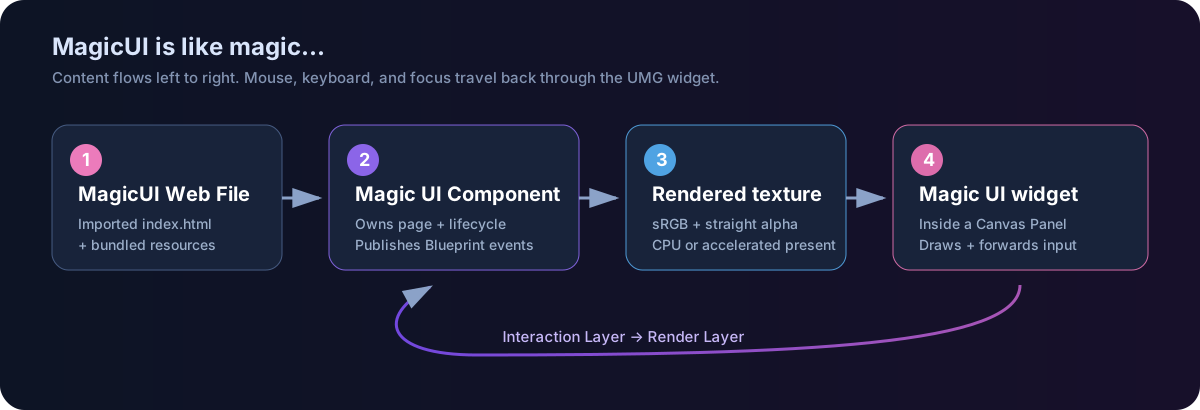
The component is the browser. The widget is the screen and input bridge. The web asset is the local page package. A Canvas Panel is simply where the screen widget is laid out.
MagicUI Web File  →  Magic UI Component  →  rendered texture
                              ↓
Canvas Panel      ←     Magic UI widget  ←  mouse / key input
If the page is blank, inspect that chain from left to right. Most first-time setup issues are either an unassigned HTML Asset or a UMG widget whose Source Component was never set.
What this tutorial deliberately does not do
- It does not load a website. This build is local-bundle-only.
- It does not call
Initialize UIorLoad HTML From Assetin BeginPlay. An assigned HTML Asset is loaded automatically by the component. - It does not enable Resize View To Widget. A full-screen component already uses Auto Resize To Screen, and that setting owns the view size.
- It does not use the named event helper yet. The first button uses the raw bridge so you can verify the smallest possible setup.
Continue with Install and enable.