1. Install and enable MagicUI
The finished project should contain one project-level plugin folder, and Unreal Editor should show MagicUI as enabled.
Close Unreal Editor
Close the editor before copying the plugin. Native plugin libraries can remain loaded while the editor is open, which makes an update look successful on disk while the running editor still uses older files.
Find the project root
The project root is the folder containing your .uproject file. For a project
named MyGame, it might look like:
C:\UnrealProjects\MyGame\
├── MyGame.uproject
├── Config\
├── Content\
└── Source\                 (C++ projects only)
Create a folder named Plugins beside the .uproject file if it does not
already exist.
Copy the packaged plugin
- Open the MagicUI package you received.
- Find the folder whose root contains
MagicUI.uplugin. - Copy that entire folder to
<YourProject>/Plugins/MagicUI/. - Do not add another folder level between
MagicUIandMagicUI.uplugin.
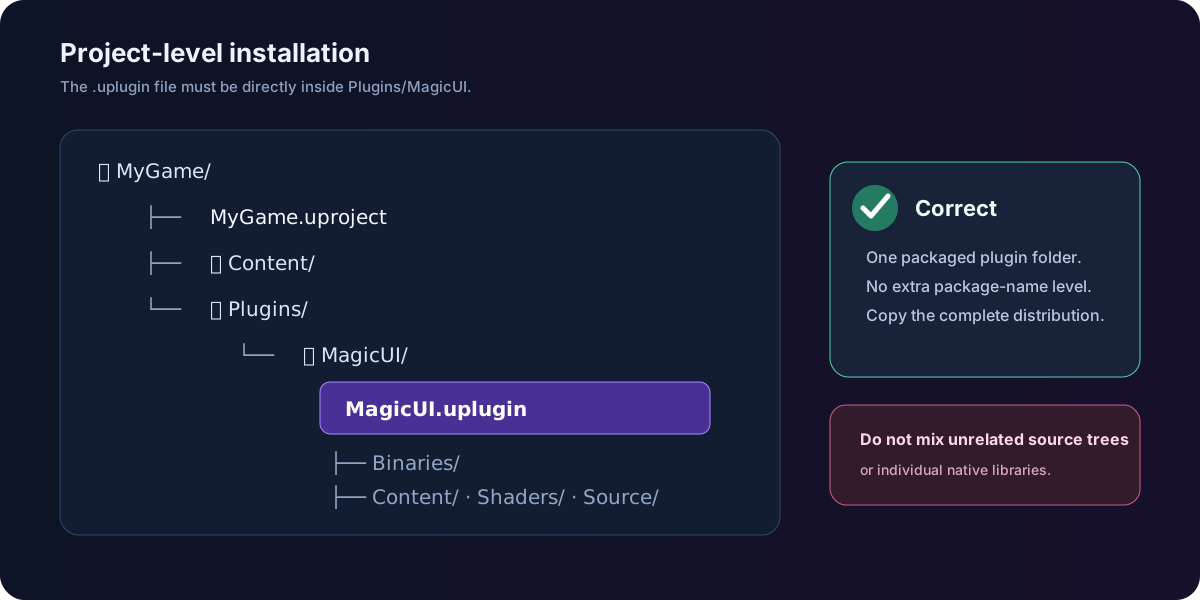
The important test is this exact path:
The distributed Binaries, Content, Shaders, Source, configuration, and
third-party runtime files belong together. Do not select individual DLLs or
mix files from another source or plugin package.
A common extra-folder mistake
This is wrong:
Move the inner plugin folder up so MagicUI.uplugin sits directly beneath
<YourProject>/Plugins/MagicUI/.
Launch and enable the plugin
Open the .uproject, then follow this menu path:
- Enter
MagicUIin the Plugins window search field. - Select the plugin in the UI category or search result.
- Turn on Enabled.
- Accept Unreal's restart prompt.
- After the editor restarts, return to the Plugins window and confirm the checkbox is still enabled.
Confirm the editor content is visible
This is optional, but it is a useful installation check.
- Open the Content Drawer.
- Select Settings in the Content Browser.
- Enable Show Plugin Content.
- Look for the MagicUI Content folder.
The plugin includes local HTML test pages. The main tutorial does not use those pages; it imports your own HTML asset so the same content can cook with your game.
If Unreal asks to rebuild modules
A source-compatible C++ project may offer to compile the plugin. A packaged binary plugin should instead match the exact Unreal version and platform for which it was built. If a packaged plugin reports that its modules are missing or incompatible:
- confirm the project is using Unreal Engine 5.8;
- confirm you copied the Win64 package on Windows or the Mac package on Apple silicon;
- confirm the package was extracted completely; and
- obtain a package built for your engine/platform rather than copying native runtime files by hand.
Source control
Treat the distributed plugin as one unit. A team member who checks out the
project needs its native runtime files as well as the .uplugin and source
metadata. Review broad project-level ignore rules that might accidentally
omit the plugin's Binaries or third-party runtime directories.
Next, create the first HTML page.