Magic UI widget and input
The UMG palette item named Magic UI displays a component's current texture and translates Slate input into browser coordinates. It belongs inside an ordinary Widget Blueprint hierarchy such as a Canvas Panel, Overlay, Size Box, or menu layout.
It must receive a valid runtime Source Component.
Connect the source correctly
For a component on a placed Actor, use an expose-on-spawn variable in the containing Widget Blueprint:
- Create
MagicUISourceas a Magic UI Component Object Reference; - Enable Instance Editable and Expose on Spawn;
- In Event Construct, call the Magic UI child's Set Source Component;
- Pass the Actor's component into the pin on Create Widget.
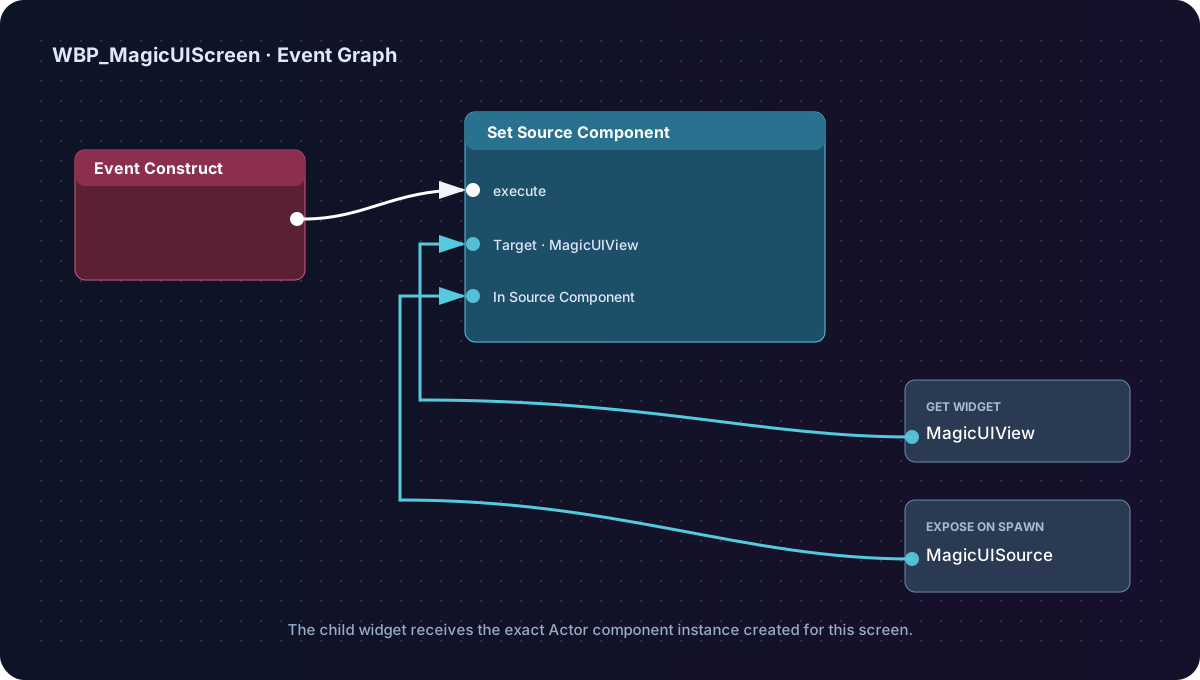
If HTML loads but the UMG region remains empty, inspect this connection first.
Widget properties
| Property | Default | Behavior |
|---|---|---|
| Source Component | None | The one component whose texture and input state this widget uses. |
| Resize View To Widget | Off | Coalesces stable UMG size changes into async live browser resizes. |
| Preserve Aspect Ratio | On | Fits instead of stretching when widget and browser aspect ratios differ. |
| Mouse Input Routing | Automatic | Chooses whether pointer actions are consumed or passed to gameplay. |
| Keyboard Input Routing | Automatic | Consumes keys only while editable HTML is focused. |
Pick one size owner
Resize View To Widget is ignored while the component's Auto Resize To Screen is enabled. Use one of these patterns:
| Screen type | Component | Widget |
|---|---|---|
| Full-screen menu/HUD | Auto Resize To Screen = On | Resize View To Widget = Off |
| Resizable UMG panel | Auto Resize To Screen = Off | Resize View To Widget = On |
| Fixed/world-space texture | Auto Resize To Screen = Off; set View Width/Height | Resize View To Widget = Off |
See Sizing and DPI for device scale and displayed-size details.
Mouse routing modes
| Mode | HTML receives | Gameplay receives | Use for |
|---|---|---|---|
| Automatic (Recommended) | All input on opaque pages. On transparent pages, actionable input over cached interactive HTML regions. | Transparent/pass-through regions and letterbox bars. | HUD overlays and mixed game/UI screens. |
| Always | Pointer actions once the page/input readiness gates pass. During blank/loading states, the widget consumes the action but has no ready HTML target to receive it. | Nothing underneath the widget. | Modal menus, tutorials, pause screens. |
| Never | Pointer movement only, so CSS hover can update. No click, wheel, or actionable input. | Gameplay remains in control. | Decorative/non-interactive UI. |
Actionable HTML forwarding begins only after the view is initialized, the page is ready, and at least one completed frame exists. Automatic also passes input through before those gates; Always deliberately consumes it even while the page is blank or loading.
For transparent pages, MagicUI uses cached cursor/editable-focus information from the browser. Give actionable HTML an appropriate cursor:
button, a, [role="button"] {
  cursor: pointer;
}

input, textarea {
  cursor: text;
}

.decoration {
  pointer-events: none;
}
Keyboard routing modes
| Mode | Behavior |
|---|---|
| Automatic (Recommended) | Consumes keys only when the page reports editable focus, such as an input or textarea. |
| Always | Sends and consumes keys whenever the widget is handling keyboard input. |
| Never | Does not forward or consume actionable keyboard input. |
The Player Controller still needs an input mode that permits UI focus. For a screen menu, use Game and UI or UI Only, show the cursor as appropriate, and focus the containing User Widget.
Ordinary Unicode text is forwarded. Full Slate IME composition integration is not complete in this plugin checkpoint, so thoroughly test complex composition workflows needed by your supported languages.
Aspect fitting and letterbox regions
With Preserve Aspect Ratio enabled, paint and pointer coordinate mapping use the same fitted rectangle. If the UMG slot is wider or taller than the browser view, unused letterbox bars pass through in Automatic mode.
Turn aspect preservation off only when stretching the texture is intentional. For a screen-filling view, matching component and viewport size avoids both letterboxing and resampling.
Focus and cursor state
The component exposes:
- Set View Focus for a custom host;
- Has Keyboard Input Focus for the cached editable state; and
- Is Mouse Over Interactive Element for the cached pointer state.
The normal Magic UI widget manages browser focus while handling Slate input. When using Toggle Magic UI, hiding the screen explicitly clears browser focus so gameplay keys are not left captured.
Custom input hosts
If you present Get Rendered Texture yourself instead of using the Magic UI widget, you also own coordinate conversion, hit testing, capture, and input forwarding. The component exposes:
- Handle Mouse Move
- Handle Mouse Button
- Handle Mouse Wheel
- Handle Key Event
- Handle Text Input
- Set View Focus
Mouse positions are logical CSS coordinates with a top-left origin. Once a mouse press is accepted, preserve and forward its matching release. For most screen-space UI, the native widget is safer than recreating this integration.
Current transparent-input caveat
Browser hit state is asynchronous. In transparent Automatic mode, the first click immediately after entering an interactive region can arrive before the new cached cursor state. This is a known same-tick limitation; subsequent input uses the updated state. Use Always for a modal screen where first-click certainty matters more than pass-through.
Continue with Transparency and pass-through or Show and hide a menu.